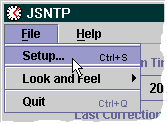
Access JSNTP's setup dialog from the File menu as shown below. You may also use the keyboard shortcut CTRL-S.
The setup dialog, similar to that shown below, will appear.
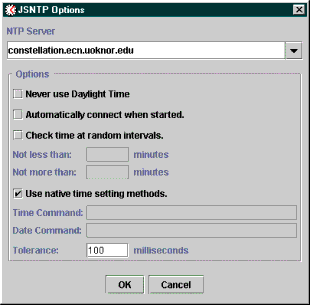
Enter or choose the name of the NTP server with which you want to connect. It is strongly recommended that you only attempt to connect with secondary (stratum 2) NTP servers, open to public access and within your geographic region. Click on the down-arrow button and select a server from the list of suitable servers You can key in the name of a server that is not on the list.
If you connect to the Internet thru a proxy server, then you should enter the name of your proxy server in this field, rather than an NTP server. But, in order for JSNTP to work you'll have to configure a UDP service for port 123 on your proxy server to forward packets to the real NTP Server of your choice, also on port 123. Consult your proxy server's documentation for further information.
Java may incorrectly apply Daylight Time to some time zones that never use them, such as Arizona. This only affects the displayed time, not the correction. If JSNTP is displaying time one hour ahead of your actual time, double check your computer's time settings, and if they are correct check this box to correct JSNTP's displayed time.
Check this box if you want JSNTP to automatically connect to the NTP server when the program is started.
Check this box if you want JSNTP to "ping" the server at random. If you select this option, you simply start JSNTP by pressing the "Start" button, and it will refresh its time synchronization within the specified time interval. You can use this feature to keep a dial-up connection alive during periods of inactivity. (Of course, if you are going to be away from your machine for any length of time, you should disconnect... this pinger is not intended to be abused.)
Enter the number of whole minutes that is the minimum ping interval. JSNTP will not transmit consecutive pings any sooner than this. You may not enter a value less than five (5) minutes.
Enter the number of whole minutes that is the maximum interval that JSNTP will wait to ping the server. It must be greater than the "less than" value. jHelp will calculate a random interval somewhere between the minimum and maximum values after each ping, and wait that amount of time until the next ping.
If you are using Windows, Linux(x86), Solaris 2.5.1 (or greater) or MacOS, you should check this box. This will permit JSNTP to load an appropriate native code library at runtime and perform the most precise time synchronization. If you do not check this box, you will have to provide system dependent time and date setting command templates. If you are running Solaris, you'll have to set the LD_LIBRARY_PATH to include JSNTP's home directory. For example:
LD_LIBRARY_PATH=$LD_LIBRARY_PATH:/opt/jsntp
export LD_LIBRARY_PATH
Of course, the above should be modified to point to your JSNTP installation directory. (For JSNTP to set time on a UNIX box, you'll have to run it as super-user, so you should be familiar with the above.)
If you are not using native methods, you'll have to provide a time command template, and possibly a date command template. Command templates are specified in a format that is compatible with Java's SimpleDateFormat. Here's an example for DOS or Windows systems:
Time Command: 'c:\command.com /c time 'HH:mm:ss.S
Date Command: 'c:\command.com /c date 'MM-dd-yyyy
Note that the single quote (') characters are necessary.
UNIX boxes typically set the time and date with a single command. If your UNIX version supports the ADJUST command (such as Solaris/x86,) a command template is not required. Simply place the word ADJUST as the time command, and leave the date command field blank. This will cause JSNTP to execute the UNIX "date -a" adjustment command for a fairly precise correction. Refer to your man pages to see how "date -a" works. It does not instantly adjust the time, but slows down or speeds up the system clock until the requested correction is acchieved.
Time Command: ADJUST (UNIX only)
Unfortunately, we cannot provide all the possible OS-specific time and date commands. Hopefully, you'll be able to create your own from the above example. Please send us your working templates at bgiel@ct2.nai.net.
The Tolerance field is only used when native time setting methods are enabled. This value will be used to see if JSNTP should request another time packet immediately from the server, if the correction exceeds this amount. It is used as a check, and a way to get the most precise adjustment. The minimum tolerance value is 100 milliseconds,which is a reasonable value for typical personal computers. However, JSNTP will usually acchieve greater accuracy.
[ Back to Readme ]